
1. Built-in desktop notifications
When Claude finishes a task or pauses for a permission prompt and you seem to be away, Claude Code fires a notification. Its docs say it sends a desktop notification by default only in Ghostty, Kitty and iTerm2. Ghostty and Kitty need no setup.
In iTerm2, go to Settings, Profiles, Terminal. Check “Notification Center Alerts”, click “Filter Alerts” and enable “Send escape sequence-generated alerts”.
2. The terminal bell
In other terminals you can ask Claude Code to ring the bell instead. Add this to ~/.claude/settings.json:
{
  "preferredNotifChannel": "terminal_bell"
}
3. A Notification hook
A hook runs any command when Claude needs you, in any terminal. This one, from the Claude Code hooks guide, shows a macOS notification. The guide also has Linux and Windows versions.
{
  "hooks": {
    "Notification": [
      {
        "matcher": "",
        "hooks": [
          {
            "type": "command",
            "command": "osascript -e 'display notification \"Claude Code needs your attention\" with title \"Claude Code\"'"
          }
        ]
      }
    ]
  }
}
4. Answer the prompt where you are
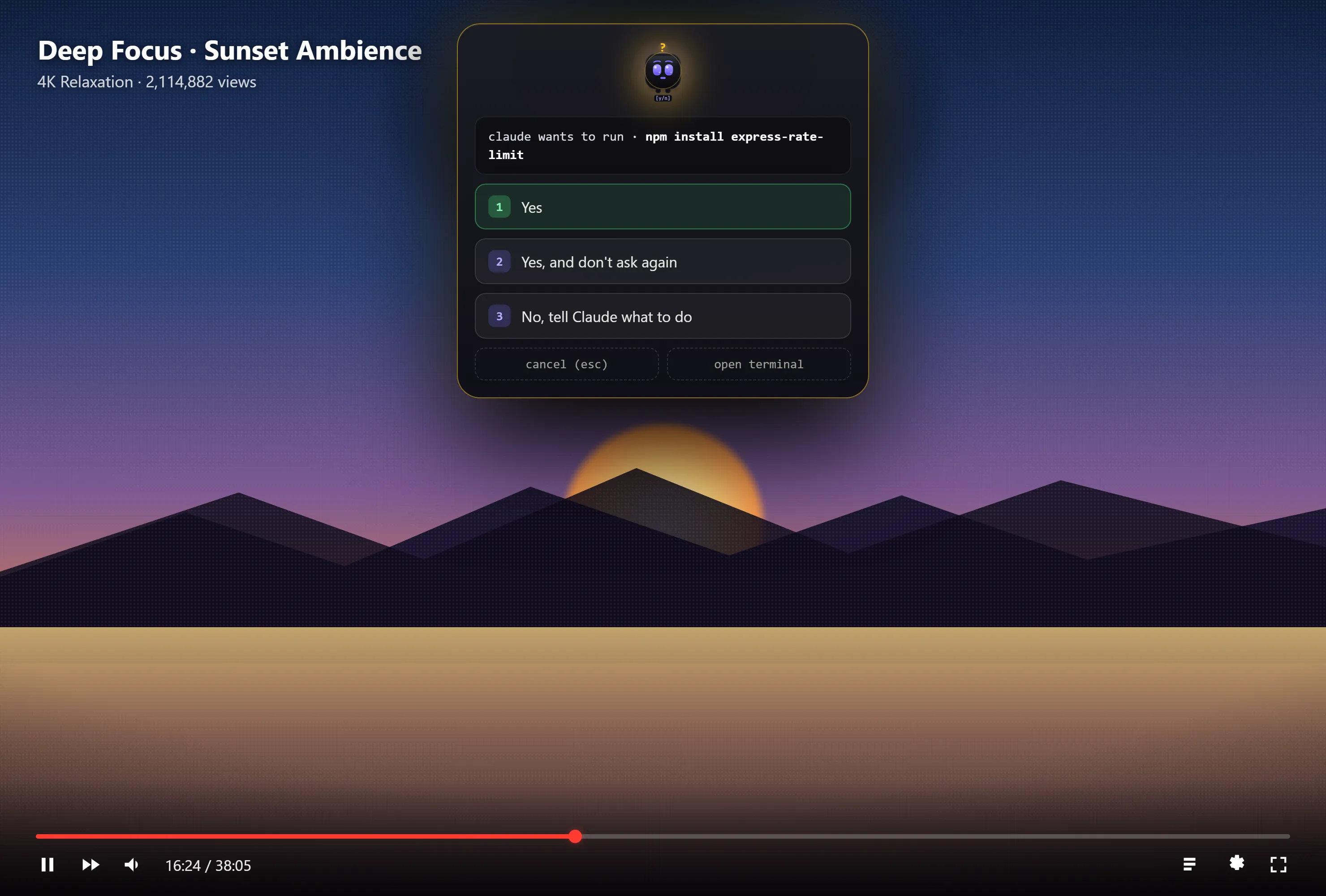
A notification tells you to go back. DockTerm brings the question to you instead. munu, DockTerm’s small mascot, shows Claude’s question and the same options the terminal offers, and you click one. On a Mac it drops from the notch and shows even over a fullscreen app. On Windows and Linux it is a small pill.
munu reads Claude’s state from the terminal text, so you do not add a hook or change your Claude Code settings. It never answers for you.
Set up DockTerm
- Download DockTerm from the latest release, or on a Mac run
brew install --cask munvard/dockterm/dockterm. - Open a project folder. DockTerm starts a real shell in it.
- Run
claudeas you always do. There is nothing to configure.